Bi-monthly news update from IsDB-BISEW IT Scholarship Programme (November 2025)
Jul 20, 2026 / IT Scholarship Programme
Empower

Welcome to the November 2025 issue of Empower, the periodic newsletter of the IsDB-BISEW IT Scholarship Programme. This edition features the following topics of note:
-
How to use Gemini: A detailed beginner's guide
-
In Their Own Words – Nusma Khan
How to use Gemini: A detailed beginner's guide

Gemini, Google's AI chatbot, offers all the same features you'd expect from any AI chatbot: it can browse the web, conduct in-depth research, analyse and visualise data, generate AI images and videos—you name it, it can do it.
But, for my money, the best thing about Gemini is that it integrates deeply with other Google products. Want to search your Gmail file jungle with one prompt? Or summarise files inside your Google Drive? You can do it all without leaving your Gemini chat.
Here's everything you need to know about how to use Gemini.
Note: Gemini is also the name of Google's family of AI models, which powers Gemini the AI chatbot (it's confusing, I know). Here, I'm only talking about the chatbot.
Table of contents:
- What is Google Gemini?
- How to use Gemini on the web or mobile app
- How to use Gemini in the Chrome browser bar
- How to use Gemini Live
- How to use Gemini's non-chat features
- Automate Gemini with Zapier
- How to use Google Gemini: FAQs
What is Google Gemini?
Google Gemini is an AI chatbot built by Google that can understand and generate text while also natively understanding, operating on, and combining other kinds of information, such as images, audio, videos, and code.
In practice, this means it can do things like:
- Hold a voice or text-based conversation with you about virtually any topic
- Generate text for any occasion—for example, poetry, blog posts, and emails
- Brainstorm ideas
- Generate images and videos (and tweak them based on your requests)
- Search the internet for current information
- Analyse images and data
- Create charts and graphs based on your inputs
- Translate natural language or design mockups to code
- Interact with your computer and take basic actions on your behalf
And practically anything else you'd imagine a multimodal chatbot trained on the entirety of the internet might be able to do.
How to use Gemini on the web or mobile app
Here's the short version of how to use Google Gemini:
- Go to gemini.google.com and log in with your Google account or sign up (it's free).
- Choose the AI model you want to use.
- Enter your text, image, or audio prompt in the message box on the Gemini home page.
- Once Gemini spits out a response, you have a handful of options:
- Edit your original prompt.
- Enter (or say) a new prompt.
- Like or dislike the response.
- Ask Gemini to redo its response.
- Share the response.
- Copy the response.
- Fact-check Gemini's response.
- Listen to the response.
- Review different versions of Gemini's response.
Now let's take a closer look at the finer details of using Gemini.
- Log in to Gemini
To get started, go to gemini.google.com, and click Sign in. Follow the prompts to sign in with your Google account (or create an account if you don't already have one).
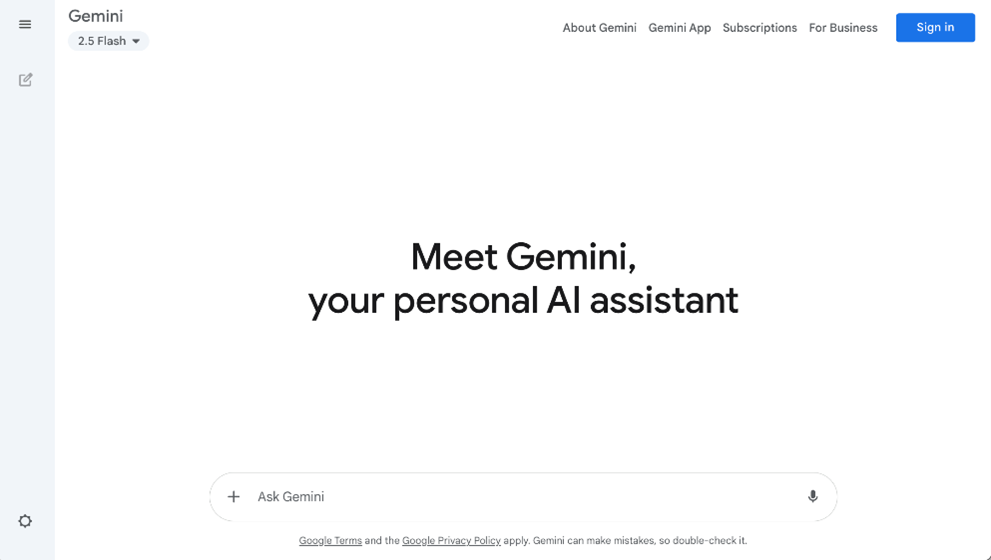
Note: If you're using a work or school Google account, your workspace administrator may have disabled access to Gemini. So, if you can't access it, that's probably why.
- Choose your AI model
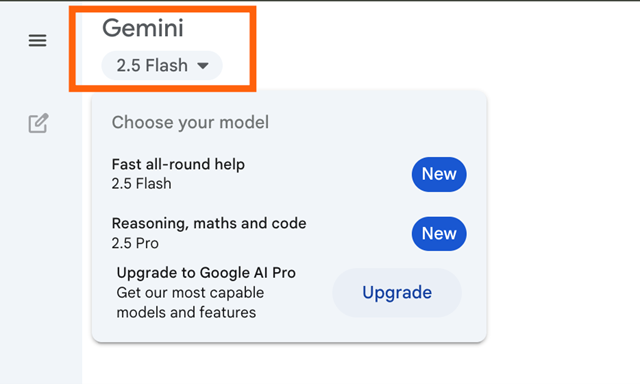
You can switch to a different AI model than Gemini's default setting. To do this, click the model dropdown in your conversation window, and then select the model you want to use.
- Ask Gemini a question

You can prompt Gemini in a few ways (some features may be limited to only the web or mobile app).
- Type your AI prompt in the text box, and press Enter (or click the Submit icon, which looks like a paper plane).
- Use Deep Research in Gemini to get it to comb through hundreds of online sources and files to give you a comprehensive response, complete with cited sources to verify its claims. To do this, click Tools in the message bar, select Deep Research, and enter your prompt.
- Create a separate canvas. If you want Gemini to output its response into its own document of sorts, click Tools, and then select Canvas. That will open up a new canvas, and you can work on the response in detail.
- Generate or edit an image by clicking Tools, selecting Create images, and entering your AI art prompt.
- Talk to Gemini by pressing the microphone icon to enter your prompt using speech-to-text. If you're using the mobile app, you can also tap the Gemini Live icon, which looks like a star floating above three vertical bars, to chat back and forth with Gemini.
- Upload an image by clicking the Add files icon in the message bar (it looks like a plus sign), uploading the image you want to share, and entering your accompanying prompt. You can also drag and drop the image from your computer into the message bar.
- Interact with Gemini's responses
In a matter of seconds, Gemini will generate a reply in an easy-to-scan format. From here, you have a number of options.
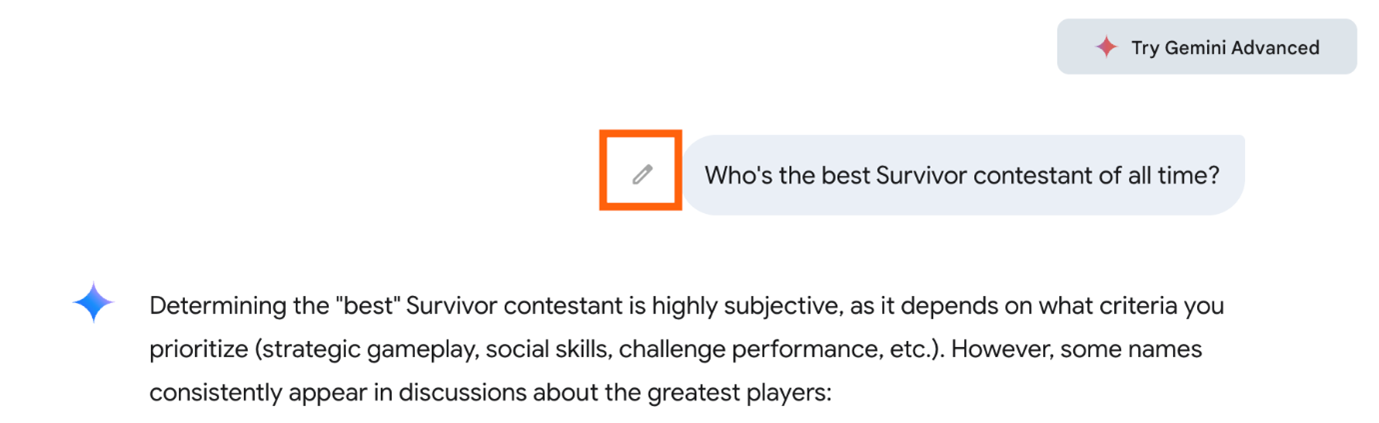
Edit your original prompt. Hover over the prompt and click the Edit message icon that appears (it looks like a pencil). Edit your prompt, and then click Submit.
- Enter (or say) a new prompt. Ask Gemini to modify its response. Gemini will refer back to whatever you discussed before and then use that to inform its response, so you don't have to repeat yourself.
- Like or dislike the response. Gemini relies on real-world feedback to improve the quality of its responses. If the response was helpful, click the Good response icon, which looks like a thumbs-up. If it was inaccurate or unhelpful, click the Bad response icon, which looks like a thumbs-down.
- Get a new response. If the response isn't quite what you're looking for, and you want to use the same prompt, click the Redo icon below the most recent response.
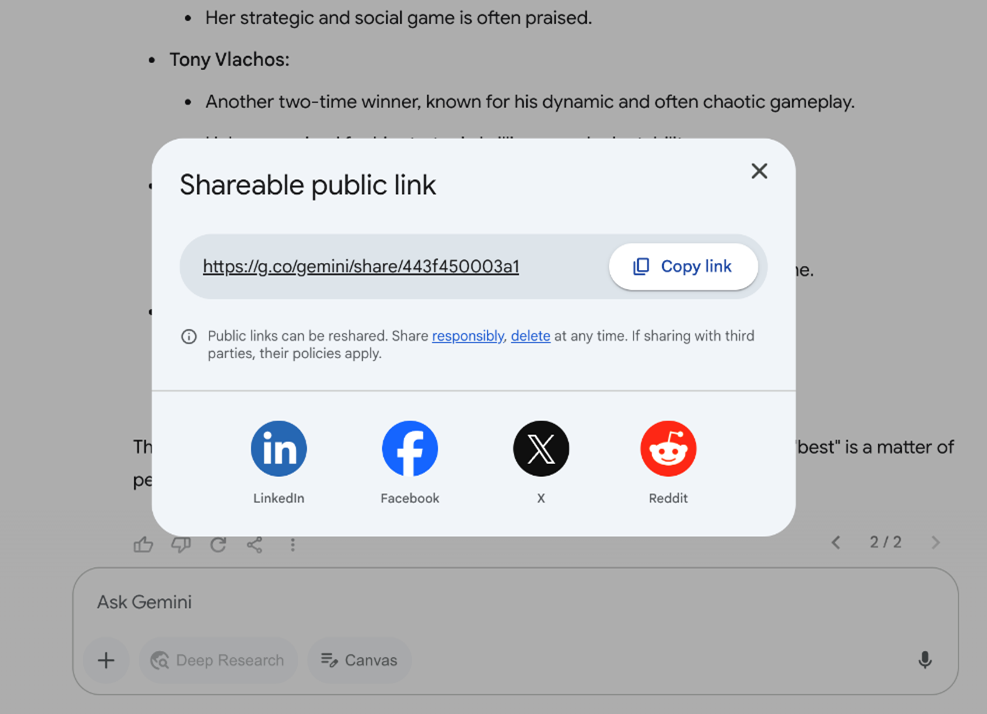
- Share the response. If you want to share Gemini's answer, click the Share & export icon, and then select Share conversation.
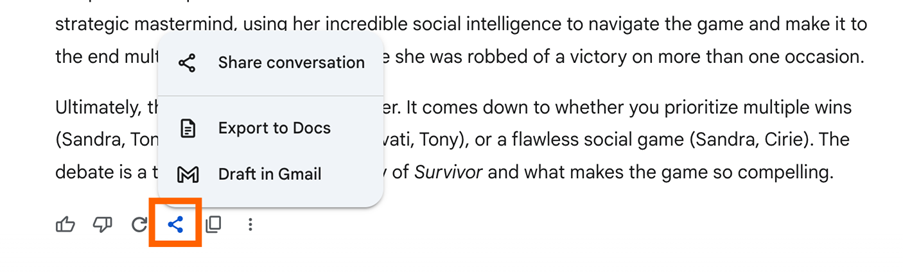
In the popup that appears, click Copy link, and share it as you normally would.
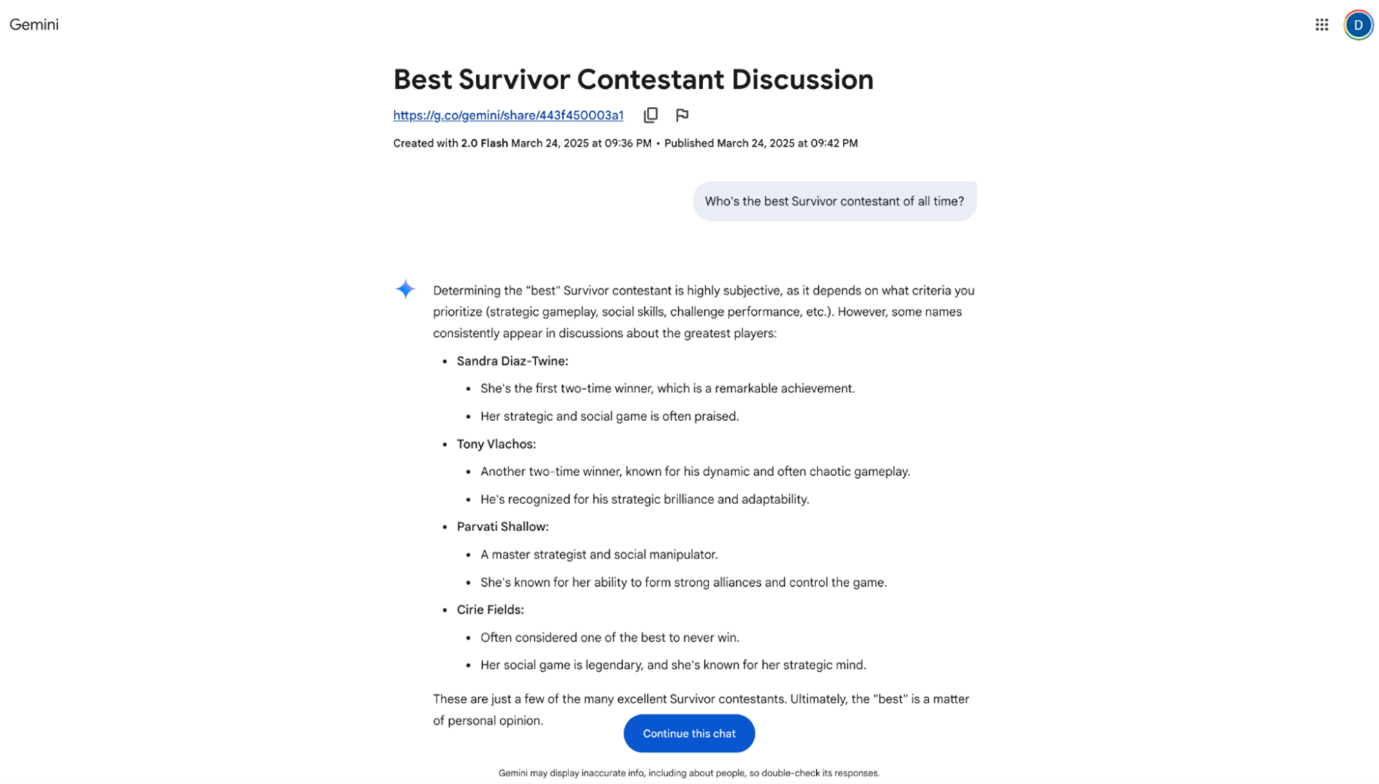
When the person you shared the link with opens the chat, they can even pick up where you left off.
Note: If you upload an image to your chat and then share the entire chat, the image will be visible and downloadable by anyone who has access to that conversation.
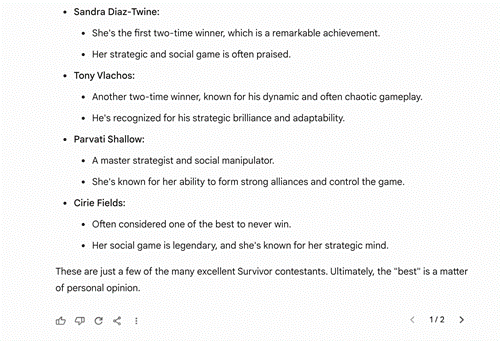
- Copy the response. If you want to share only a specific response—not the entire conversation—click the Copy response icon under the message you want to copy. Then share it as you normally would.
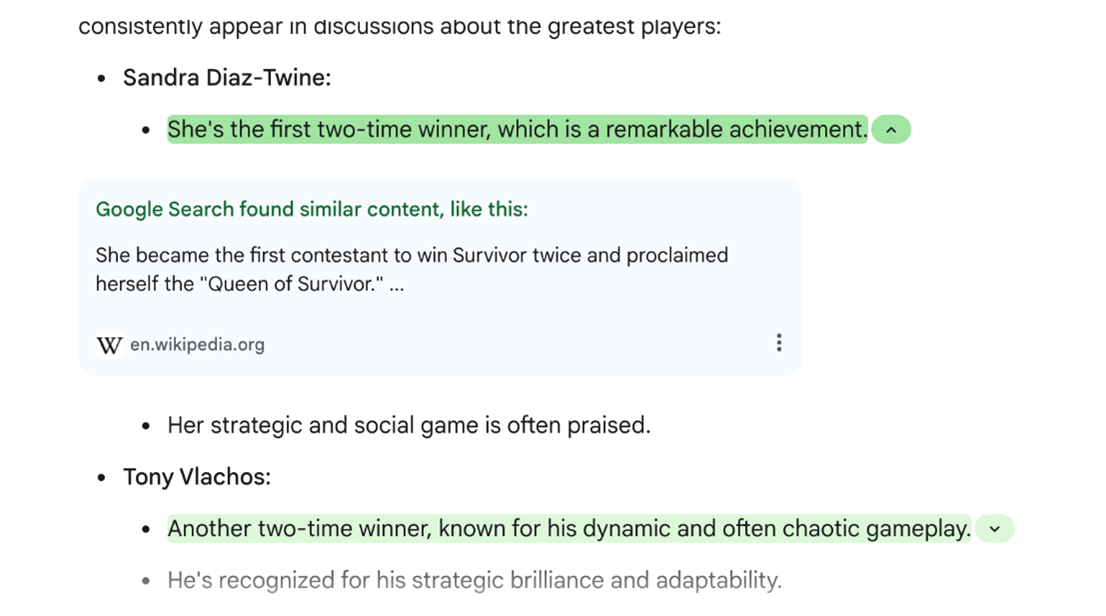
- Fact-check the response. If you want to double-check Gemini's sources and their veracity (and I highly recommend that you do, given AI's tendency to make stuff up), click the More icon, which looks like three dots stacked vertically (⋮), and then click Double-check the response. Click any highlighted statement to learn more from related Google Search queries.
- Listen to Gemini's response. You can also listen to Gemini's response. Click the More icon (⋮) beneath the response you want to hear, and click Listen. The same button will change to "Pause." Click it to pause the audio.
- Review different versions of the response. If you asked Gemini to redo any of its responses, you can review every iteration. Click the arrow next to the version number to toggle back and forth.
How to use Gemini in the Chrome browser bar
You can also initiate a chat with Gemini directly from the browser bar of any Chrome window.
- Enter @gemini in the address bar of your Chrome window.
- Click @gemini - Ask Gemini.
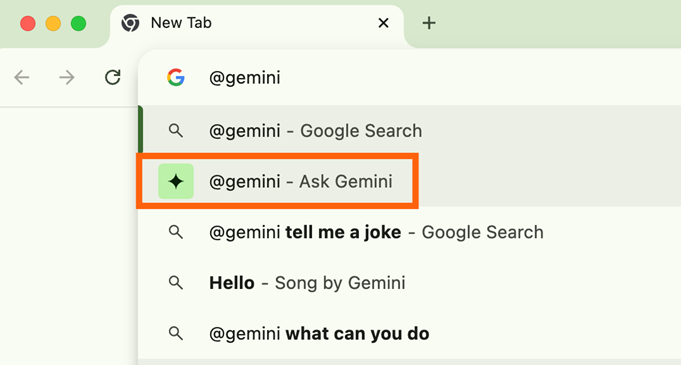
- Enter your prompt in the address bar, and press Enter.

- You'll be redirected to the Gemini homepage. Click Chat with Gemini. (You may be prompted to first sign in.)
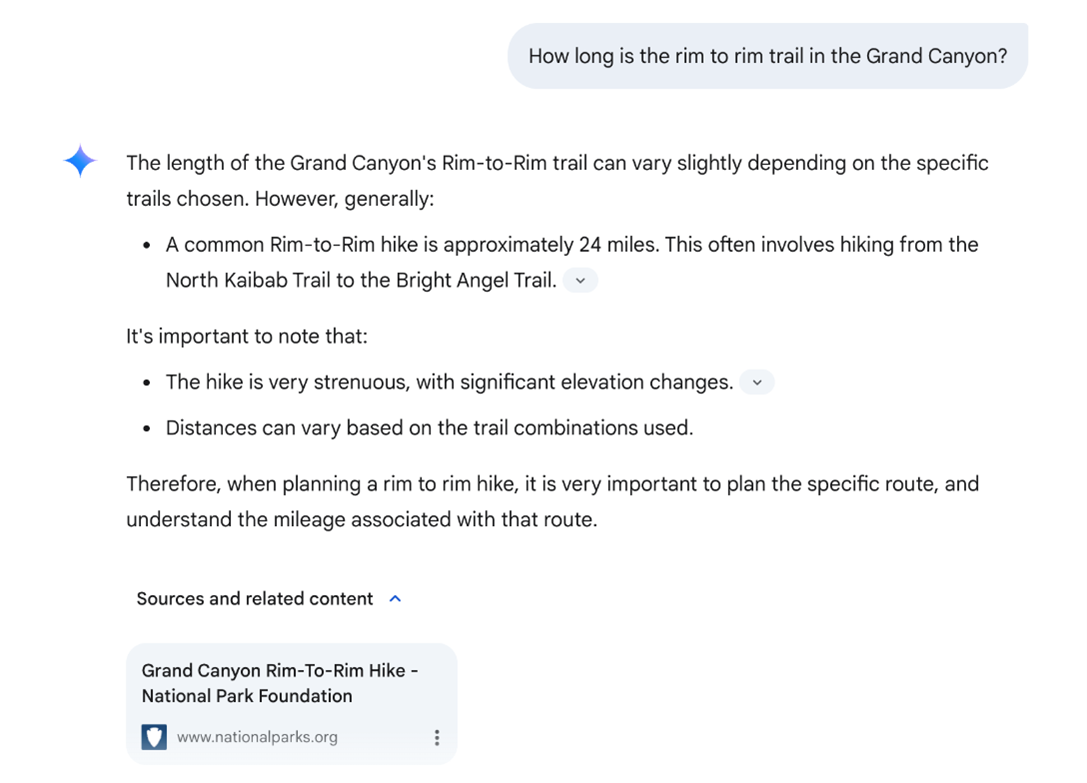
- Your response will appear in the web app.
- Continue to chat with Gemini as usual.
How to use Gemini Live
Instead of typing in your prompt, you can have a back-and-forth conversation with Gemini (Google refers to this as Gemini Live). Here's how Gemini Live works.
- Open the Google Gemini mobile app.
- Tap the Gemini Live icon, which looks like a star floating above three vertical bars.
- Say your prompt.
- Once you've finished speaking, Gemini will process your request (no need to hit send) and voice its response to you. Need to pause Gemini? Tap Hold. When you're ready to resume, tap Continue. Note: Gemini won't verbally pick back up from where it left off, but it will record the text version of what it would have said in your conversation history.
- After you've finished your conversation, tap End.

Note: This feature is currently available only in the Gemini mobile app. It's not available on the web app or in the Gemini tab in the Google app.
How to use Gemini's non-chat features
Not every feature in Gemini is directly related to actually chatting with the chatbot. Here's how to use Gemini's chat-adjacent features so you can do more than have a philosophical debate about whether The Bachelor is the greatest social experiment invented or just plain old trash.
How to retrieve information from other Google apps with Gemini
With Gemini apps, you can ask Gemini to retrieve real-time information from other Google apps, including Gmail, Drive, Maps, Flights, Hotels, and even YouTube. Just type @[name of the app you want to look in] and then enter your prompt.
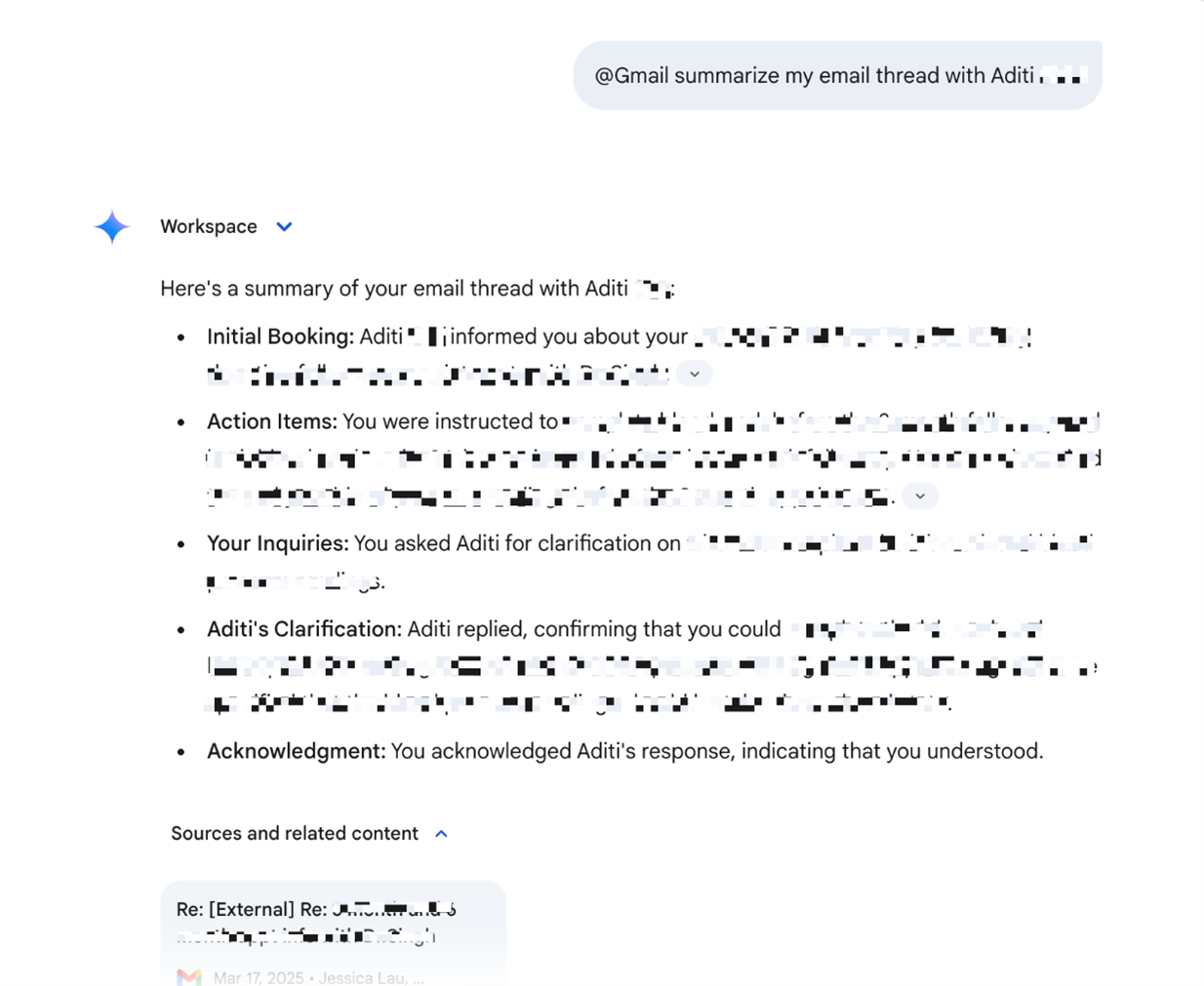
This means you can do things like ask Gemini to pull details from an email thread in Gmail. Gemini will also include a link to any emails referenced.
You can even ask it to share a link to a file stored in Google Drive. Or ask Gemini to output the contents of that file directly in your conversation, and it'll automatically share a link to the file as well.
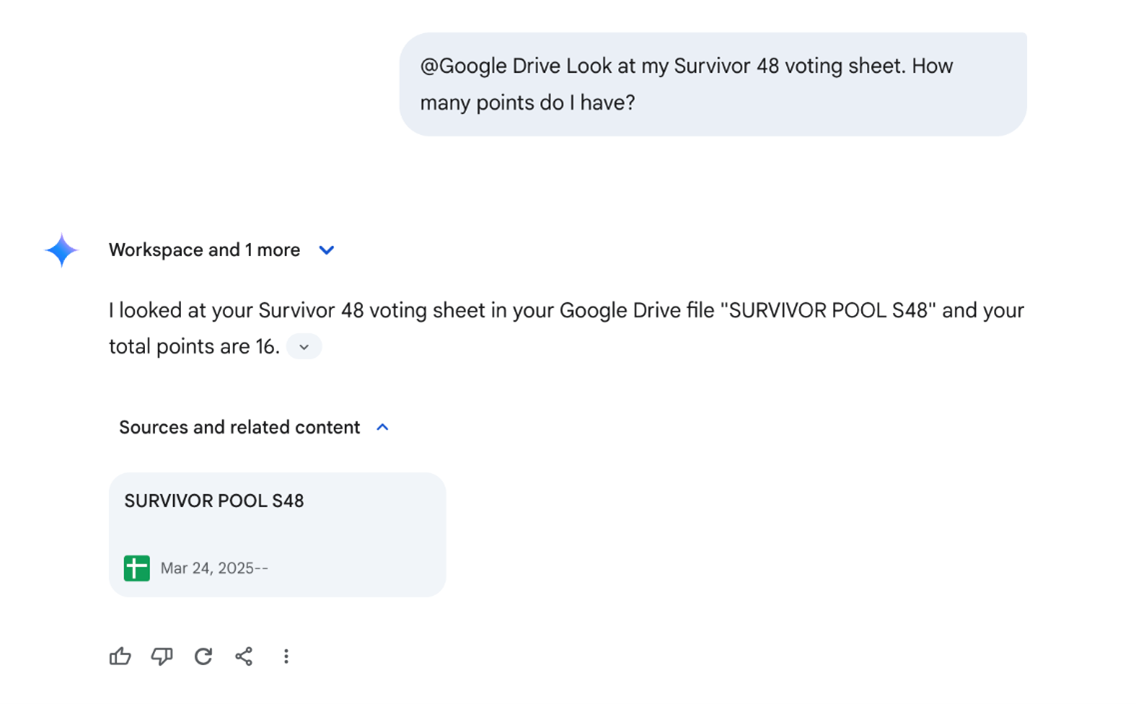
Note: Gemini won't use apps to access your personal content in other services without your permission. But if you interact with another Google Service via Gemini, your activity might be saved by that other service.
For an additional fee ($24/user/month), you can also use Google Gemini directly in your Google apps. Learn more about Gemini for Workspace.
How to generate an AI image with Gemini
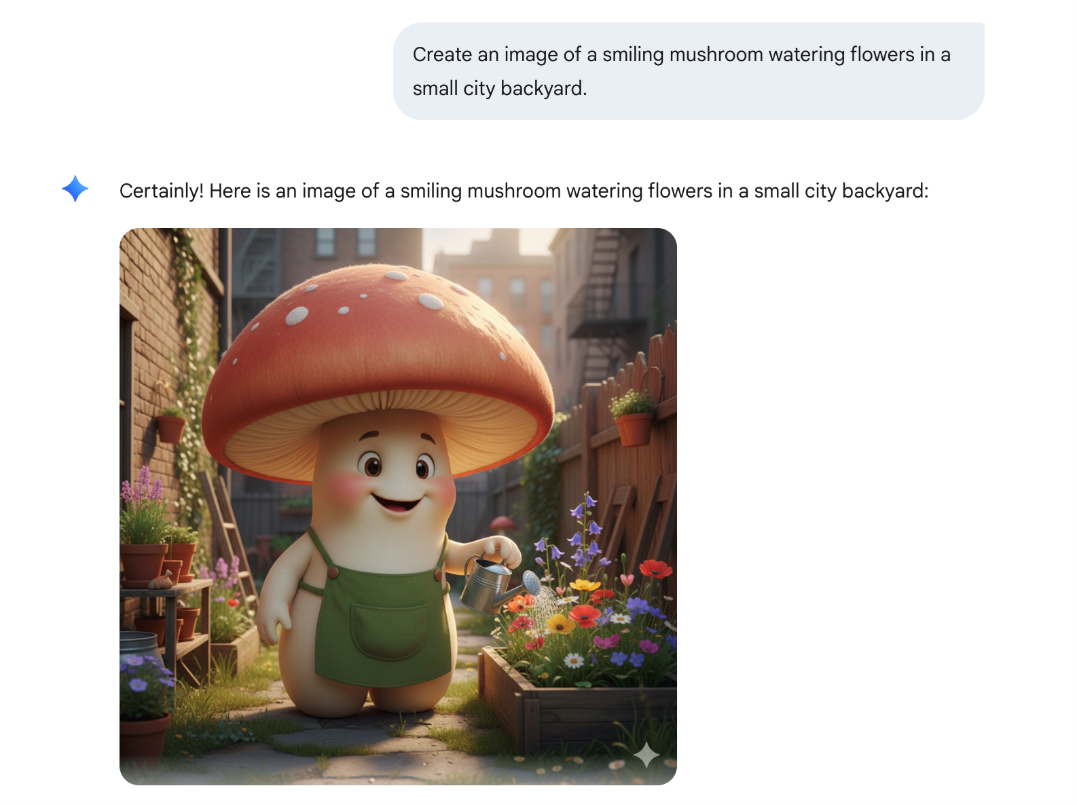
Gemini isn't limited to only sourcing existing images from the web. It also has the capability to generate AI images, powered by Gemini 2.5 Flash (also known as nano-banana). Enter your description, and watch as it brings even your wildest ideas—like, say, a happy mushroom watering flowers—to life.
How to generate AI videos with Gemini
Gemini's creative abilities go beyond text and images—it can also generate AI videos using Google Veo 3. Type in a text prompt describing the scene you want. You can also upload a static image to give Gemini a visual reference. Gemini will then turn it into a short video clip, complete with natural-sounding speech and background audio.
Note: You can access Veo 3 in Gemini, but, it's easier to use in Flow (Google's AI filmmaking app).
How to generate an audio overview of your files with Gemini
If reading through text-heavy PDFs or slides isn't your style, use Gemini's Audio Overview. This feature transforms your files—whether that's presentations, research papers, or Deep Research reports—into podcast-style audio discussions.
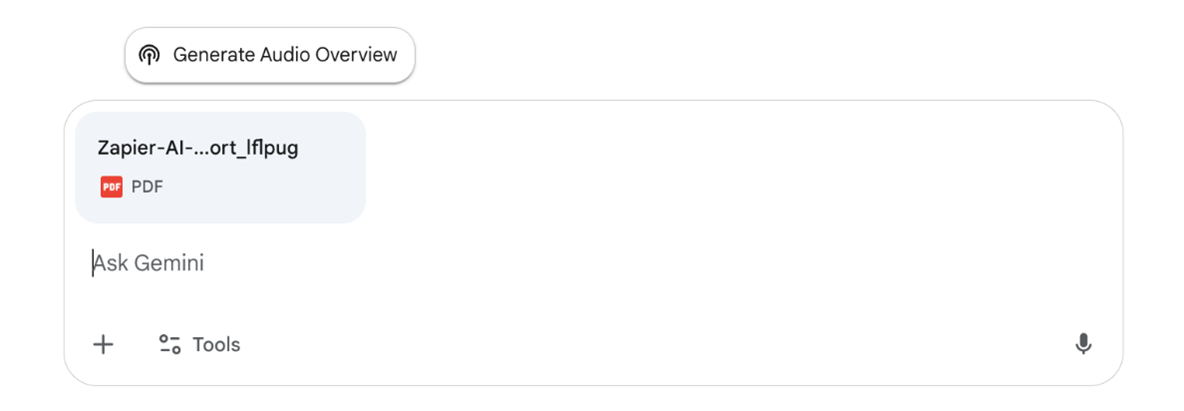
To use it, upload your file in the message bar, and then click the Generate Audio Overview suggestion chip above the bar.
Depending on the size of your file, you may have to wait a bit for the audio overview. But the end result is a podcast-style discussion with two AI hosts of your file that you can listen to via the web or mobile app. You can also download it for offline listening.
How to use scheduled actions in Gemini
Scheduled actions in Gemini is Google's response to scheduled tasks in ChatGPT. The key difference is that ChatGPT's scheduled tasks can actually take actions—like sending you daily summaries about industry-specific news or checking for cheap flights to a specific location.
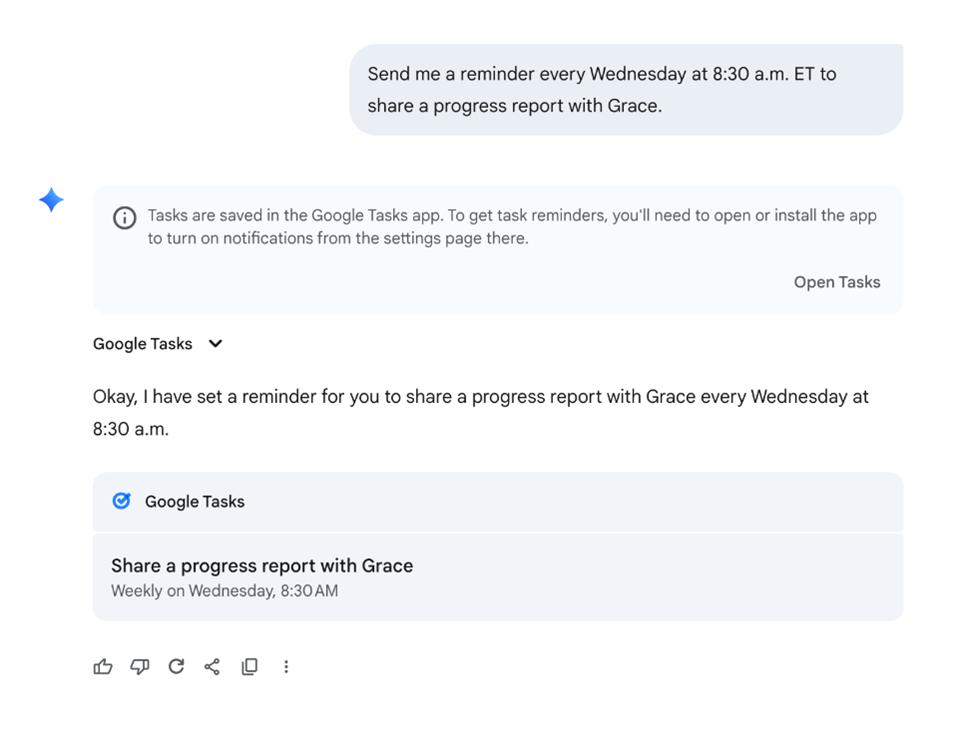
Gemini's equivalent was pitched as having similar functionality, but in actuality, it's limited to only adding tasks to your Google Tasks list and setting reminders in Google Calendar to do something. But if that's what you're looking for, here's how to use scheduled actions in Gemini.
In the prompt bar, describe what you want Gemini to do, when, and the frequency (if it's a repeat task). You can also tell Gemini to edit or delete a scheduled action, and it'll take care of it for you.
How to use Google Gemini: FAQs
I've covered a lot of ground in this Gemini guide (maybe even too much ground?), but since Google is constantly evolving its chatbot, you might still have questions. Here are answers to some of the most commonly asked ones.
Can you use Google Gemini for free?
Gemini is free to use. But if you want to use the most powerful model with higher limits to advanced features like Audio Overview and video generation, you'll need to upgrade to a paid plan.
What's the difference between Gemini and Google Assistant?
Both Gemini and Google Assistant are AI chatbots, but they have key differences based on their intended use, features, and underlying technology.
- Gemini is an AI chatbot that's designed to conduct human-like conversations and process more complex queries—for example, you can ask it to draft a summary of a 500-page research paper or describe an image.
- Google Assistant is primarily a voice assistant that's embedded into a wide range of Google services and products, including Google Home and Android devices. Its intended purpose is to do quick, task-based interactions—for example, answer questions about the weather, perform calculations, and control smart home devices.
How do I switch back to Google Assistant from Gemini?
If you used Gemini to replace Google Assistant as your primary assistant on your Android device, it's easy to switch back.
- Open your Gemini mobile app.
- Tap your profile picture (top-right corner).
- Tap Switch to Google Assistant.
- Tap Google Assistant.
- In the popup that appears, tap Switch to confirm you want to replace Gemini with Google Assistant.
Can you delete Gemini chats?
You can. Here's how to delete individual Gemini chats from the web app.
- In the side panel, hover over the name of the chat you want to delete.
- Click the More icon, which looks like three dots stacked vertically (⋮).
- Click Delete.
- In the confirmation window that appears, click Delete.
Can Gemini do temporary chats?
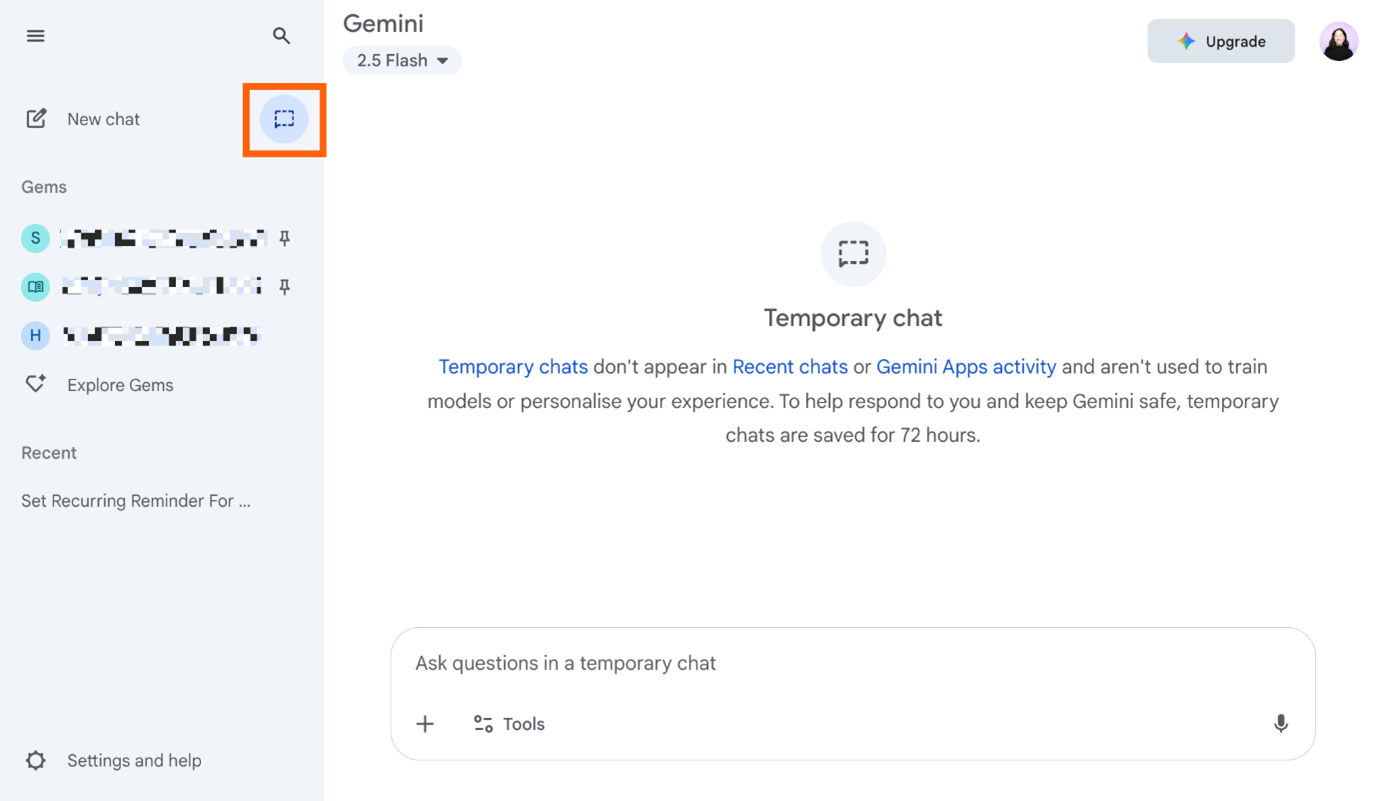
Yes—and it's a helpful feature to use if you want to have a chat with Gemini without the conversation influencing Gemini's future responses.
To use it, click on the Temporary chat icon in the side panel (it looks like a dotted speech bubble). Then chat with Gemini as you normally would.
Note: Temporary chats are saved for 72 hours.
In Their Own Words – Nusma Khan
Communication & Network Asset Manager (Support Engineer)
Shakti Foundation for Disadvantaged Women (SFDW)
IsDB-BISEW IT Scholarship Programme: Round-48
Course: Networking Technologies

Nusma Khan is a Communication and Network Asset Manager (Support Engineer) at Shakti Foundation for Disadvantaged Women (SFDW), one of Bangladesh’s most respected non-governmental organisations dedicated to empowering disadvantaged women through social and financial inclusion. Despite having an academic background in Geography and Environment, Nusma has successfully transitioned into the IT sector, establishing herself as a skilled professional in networking and system administration. Her journey highlights the transformative role of the IsDB-BISEW IT Scholarship Programme in shaping her career.
Nusma completed her Bachelor of Science degree in Geography and Environment from Eden Mahila College in 2020, followed by a Master of Science degree in the same discipline from Eden Mohila College in 2022. While pursuing her undergraduate studies, she became aware of the IsDB-BISEW IT Scholarship Programme through a family friend, who encouraged her to explore the opportunity as a pathway into a professional IT career.
In 2021, as she was nearing the completion of her master’s degree, Nusma sat for the aptitude test of the IsDB-BISEW IT Scholarship Programme. She was successful and was awarded a scholarship under Round-48 to undertake professional training in Networking Technologies.
The training programme marked a significant turning point in Nusma’s professional development. The intensive four-hour daily sessions introduced her to a highly demanding and structured learning environment, unlike anything she had previously experienced. Initially, the technical concepts and practical requirements seemed challenging, particularly given her non-IT academic background. However, the programme’s well-designed curriculum, combined with continuous hands-on practice and close guidance from experienced instructors, enabled her to build confidence and competence steadily. Through this rigorous training, Nusma successfully completed both the theoretical and practical assessments, emerging with a strong foundation in hardware, networking and system administration.
Upon completing her training in 2022, Nusma benefited directly from the programme’s strong industry linkage and mentoring support. One of her instructors informed her of a vacancy at Shakti Foundation. She applied for the position of Field Support Engineer; however, following an impressive interview, she was appointed as a Support Engineer at the organisation’s Head Office. This marked the beginning of her professional career in the IT sector.
In her current role, Nusma provides technical support to 603 branches across the country. She is responsible for managing and supporting a wide range of hardware devices and IT infrastructure essential to the organisation’s operations. Her strong technical skills, professional discipline, and problem-solving approach—developed through the IsDB-BISEW IT Scholarship Programme—have earned her recognition from senior management. As a result, she is now being prepared to take on greater responsibilities within the core networking team.
Reflecting on her journey, Nusma notes:
“The IsDB-BISEW training programme always encouraged me to apply my skills in exploring new solutions. Carrying this mindset into my professional career has helped me meet my organisation’s expectations and has significantly contributed to my professional growth.”
Nusma’s success has also inspired other graduates of the IsDB-BISEW IT Scholarship Programme, several of whom have begun their careers at Shakti Foundation and aspire to follow a similar path. Her story underscores the IT Scholarship Programme’s ability to equip individuals from diverse academic backgrounds with the skills, confidence, and opportunities needed to build sustainable careers in the IT sector.
In Nusma’s own words:
আমার ইচ্ছ ছিল, আমার ইচ্ছাপূরণ করেছে IsDB-BISEW;
আমার পরিকল্পনা ছিল,আমার পরিকল্পনা বাস্তবায়ন করেছে IsDB-BISEW;
আমি উড়তে চেয়েছিলাম, আমাকে উড়ার শক্তি দিয়েছে IsDB-BISEW;
আইডিবি প্রতি আমার কৃতজ্ঞতা প্রকাশ করছি।
– Nusma Khan.